
Pin Up Withdrawal Not Working: The Troubleshooting Decision Tree

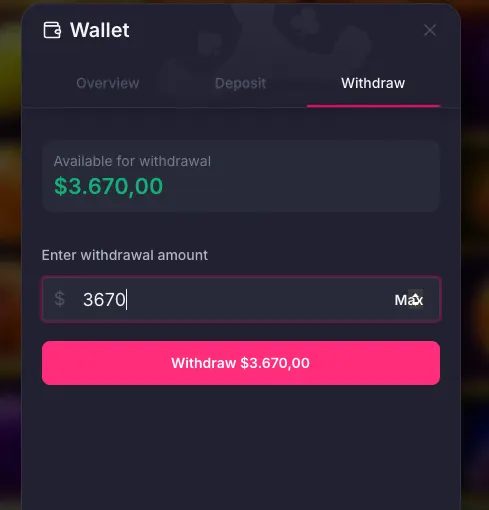
Withdrawal button greyed out? Error message you don't understand? Payout stuck in "Pending" for hours? This page is the full decision tree I run on every reader submission that comes in with "Pin Up won't pay me". Most of the time the fix is in the first three branches. The rest is for the edge cases. Work the steps in order — do not skip, because each step assumes the previous one has passed.
Status Message Decoder (What the Label Usually Means)
- "Pending" — request accepted but waiting compliance or payment queue action. See delayed payouts for method ceilings.
- "Processing" — payout released internally, now waiting provider or network settlement.
- "Cancelled" — most often active bonus, method mismatch, or KYC/document issue.
- "Completed but money not received" — usually destination rail lag (bank posting, card batch, or blockchain confirmations).
Step 1: Check the Withdrawal Method Status
Open the cashier → withdrawal tab. Every method shows one of three states: available (normal), greyed out with a tooltip, or missing entirely. If your preferred method is greyed out, read the tooltip — it usually says "temporary unavailable" or "under maintenance". This happens maybe once a month when a payment provider has an outage. ecoPayz had two outages in the last six months; Skrill had one.
Fix: switch to another method that's still available and matches your deposit source. If all methods are greyed out, the issue isn't provider-side — it's account-side, and you need to continue to Step 2.
Step 2: Verify KYC Is Fully Approved
Profile → Verification. Every slot should show "Approved" in green. If any slot is "Pending", you're waiting on review — check the processing times page for expected review SLA. If any slot is "Rejected", you got a rejection code — look it up on the KYC rejection reasons page and follow the exact fix.
Common trap: a partially approved KYC pack lets you click "Request withdrawal" but silently fails at compliance sign-off. The cashier UI shows the button as active. Pin Up only tells you it failed when you open support. Always confirm all four document slots are green before requesting a payout.
Step 3: Check for Active Bonuses
Cashier → Active bonuses. Any bonus with unmet wagering blocks every withdrawal until it clears or is forfeited. The message Pin Up's support sends when this happens says something like "withdrawal cancelled: bonus active" with no specific amount. If you see this, confirm the bonus and either grind through wagering or cancel the bonus to forfeit the bonus balance and free up your deposit.
The delayed payouts page has the full bonus-vs-withdrawal decision matrix.
Step 4: Verify the Method-Deposit Match
Cards and e-wallets require the withdrawal rail to match the deposit rail. Check your deposit history (Cashier → Transactions → Deposits) and confirm the method you're trying to withdraw to is on the list. If your deposit card is expired, that's a match problem — you'll need to update to a newer card or switch to bank transfer (which adds a 3-day delay).
Step 5: Stay Below the Compliance Threshold
If your withdrawal amount exceeds €2,500 (or currency equivalent) in a single transaction, Pin Up triggers source-of-funds screening. The payout sits in "Pending" until you upload documentation. The cashier will eventually display a note asking for SoF documents, but it can take several hours before the note appears. If you're waiting on a larger payout and the status has been Pending for over 4 hours, proactively email support asking if SoF documentation is needed.
Step 6: Open Live Chat with Your Reference Number
Pin Up's live chat is staffed 24/7 with roughly 1–3 minute response times. Open chat, click through the bot menu to "Withdrawal Issue", and when you get a human agent, say exactly this:
"Hi, my withdrawal reference [your-ref] has been stuck in [status] for [hours]. KYC is fully approved, no active bonuses, method matches my deposit source, amount is below the compliance threshold. Can you check the internal rejection reason and let me know what's blocking it?"
Be polite, be specific, and always ask for the internal rejection reason — not the customer-facing summary. Agents can read the SumSub log internally and will tell you the exact code if you ask directly. This is the single most effective escalation sentence on Pin Up.
Step 7: Email [email protected]
If live chat doesn't resolve within 24 hours, escalate to email. Write to [email protected] with your account number, withdrawal reference, amount, method, request timestamp, current status, and the live chat transcript. Finance team SLA is 72 hours — they rarely miss it, but they also rarely respond faster than 48 hours. Don't send follow-ups within the SLA window.
Step 8: File a Curacao Regulator Complaint
If finance@ ignores you or stalls past 5 business days, file a complaint with the Curacao Gaming Control Board. Go to the GCB website, find the complaint form, and submit with the same details. The GCB's response SLA is 30 days but the mere submission of a complaint usually triggers Pin Up to resolve within 48 hours because complaints affect license renewal. This is the nuclear option but it works.
Method-Specific "Not Working" Branches
UPI Withdrawal Not Working (India)
Check UPI app linkage first (GPay/PhonePe/Paytm account name must match your Pin Up profile), then bank daily UPI limits, then pending KYC. If the request fails at approval step, open UPI withdrawal and retry with the same VPA used for deposit.
Pix Withdrawal Not Working (Brazil)
Most failures are key-type mismatch (CPF vs phone vs random key) or temporary Pix provider interruption. Confirm key type and ownership, then cross-check with the flow on Pix withdrawal.
Crypto Withdrawal Not Working
The most expensive mistake is wrong network selection (TRC-20 vs ERC-20). If you are unsure, stop and verify the destination chain before resubmitting. Use the checklist on crypto withdrawal.
Common Error Messages and What They Mean
- "Withdrawal method unavailable" — provider outage. Switch methods.
- "Please complete verification" — KYC incomplete. See KYC verification.
- "Active bonus prevents withdrawal" — wagering not met. Grind or cancel.
- "Amount below minimum" — request more. See minimum amounts.
- "Daily limit reached" — split across days. See caps.
- "Please try again later" — Pin Up's payment queue hiccup. Retry in 30 minutes.
- "Destination invalid" — wrong wallet address format or wrong card last-4. Double-check.
- "Transaction pending review" — compliance hold. See delayed payouts.